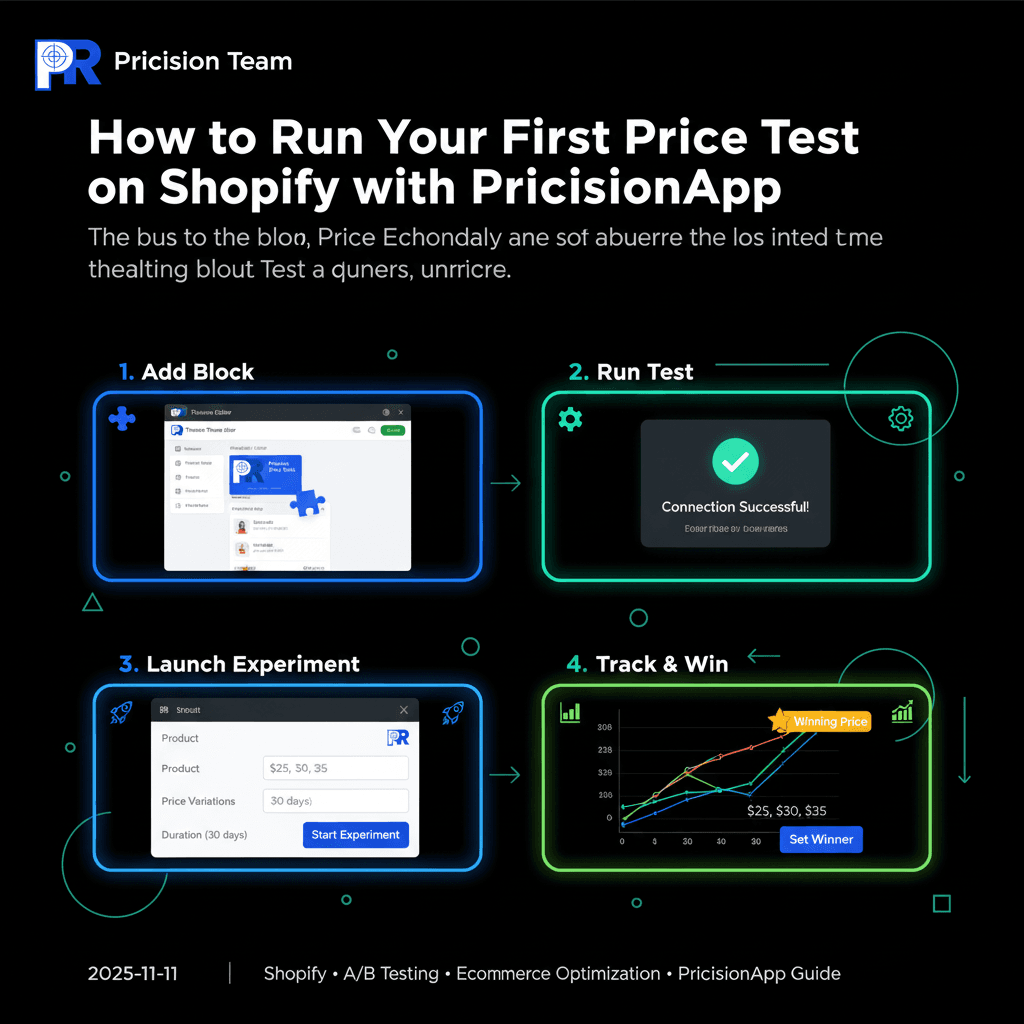
Step 1
Add the Pricision Price Block
Connect your Shopify product page directly to PricisionApp’s testing engine.
Step 2
Run the Block Test
Verify your setup and ensure your data is clean before you start testing.
Step 3
Launch Your First Experiment
Choose your product, set price variations, and start live testing.
You can go from install to your first pricing experiment in under 10 minutes. PricisionApp connects directly to your Shopify product page, tests prices live, and automatically finds your winning price — no coding required.
🧩 Step 1 – Add the Pricision Price Block
Once you’ve installed the app, the first thing you’ll do is connect the Pricision Price Block to your product page.
- Open your Shopify Product Page template from the theme editor.
- Find your current price block — that’s Shopify’s default.
- Replace it with the new Pricision Price Block and click Save.
That’s it! You’ve just connected your product page to PricisionApp’s testing engine.
From now on, your store can dynamically test different prices, track performance, and measure which version converts better.
⚙️ Step 2 – Run the Block Test
Next, head back to your PricisionApp dashboard and click “Check Status.”
PricisionApp will run a quick diagnostic to confirm everything is connected correctly.
When you see the green success message, your store is ready for live experiments.
Think of this as your calibration step — it ensures your data is clean, your tracking works, and your test results will be accurate.
🚀 Step 3 – Launch Your First Experiment
- Go to the Experiments section and click Create New Experiment.
- Select the product you want to test — your best seller, a slow mover, or a brand-new launch.
- Enter your price variations — for example, test $25, $30, and $35.
- Optionally, enter your COGS so PricisionApp can calculate profit per visitor.
- Set your test duration — 7, 14, or 30 days depending on traffic volume.
- Click Start Experiment — and you’re live!
PricisionApp will now rotate prices automatically, track conversions, and gather data to identify your most profitable price point.
📊 Step 4 – Track Performance on the Dashboard
Head to the Dashboard tab to monitor your experiment’s performance.
You’ll see real-time metrics like views, conversion rate, average order value, and profit.
When a specific price consistently wins, you’ll see a ⭐ “Winning Price” badge beside it.
Click Set Winner to automatically update your live Shopify price.
Just like that, your store is running smarter — powered by real data, not assumptions.
PricisionApp makes data-driven pricing effortless.
In just 4 steps, you can install, test, and find your most profitable price point automatically.
Start Free Trial →